# Apple Pay for Payment Setup API
To process Apple Pay payments using the Payment Setup API, you need your own Apple developer account, and an Apple merchant ID.
See [Apple's enrollment requirements](https://developer.apple.com/programs/enroll/) for more information.
---
## Before you start
To set up Apple Pay, you need the following:
- An Apple developer account.
- A domain with a valid TLS certificate (your domain must start with `https`).
- Access to a Secure Shell (SSH) terminal.
- Access to upload files to your server.
---
## Set up Apple Pay
To process payments on an app or on a website using the Payment Setup API, follow these steps:
1. Create a merchant identifier with Apple.
2. Create a certificate signing request.
3. Create an Apple Pay payment processing certificate.
4. Upload the signed payment processing certificate.
5. Register a merchant domain.
6. Create your Apple Pay certificate and private keys.
7. Test Apple Pay certificate and private key validity.
8. Integrate Apple Pay.
---
## Create a merchant identifier
1. In your Apple Developer account, go to the [Add Merchant IDs section](https://developer.apple.com/account/resources/identifiers/add/merchant), select _Merchant IDs_ > _Continue_.
2. Add a useful description, like `merchant ID for test environment`.
3. Enter your desired Merchant ID name in the _Identifier_ section. Use a descriptive name to indicate both the domain and the environment. For example, `merchant.com.mywebsite.sandbox`.
> **Information**
>
> You must create separate merchant IDs for your sandbox and production environments.
---
## Create a certificate signing request
To create a certificate signing request (CSR), call the [Generate a certificate signing request](https://api-reference.checkout.com/tag/Apple-Pay/#operation/generateApplePaySigningRequest) endpoint.
> **Information**
>
> Your base URL's `{prefix}` value is unique to your account and environment. To learn how to retrieve your base URLs for the sandbox and production environments, see [API endpoints](https://www.checkout.com/docs/developer-resources/api/api-endpoints.md).
**Production**
`POST` `https://{prefix}.api.checkout.com/applepay/signing-requests`
**Sandbox**
`POST` `https://{prefix}.api.sandbox.checkout.com/applepay/signing-requests`
You can use the `protocol_version` field to specify whether to use the EC or RSA protocol for the CSR encryption.
### Request example
```json
{
"protocol_version": "ec_v1"
}
```
### Response example
```json
{
"content": "-----BEGIN CERTIFICATE REQUEST-----MIIBSTCB8AIBADCBjzELMAkGA1UEBhMCR0IxDzANBgNVBAgMBkxvbmRvbjEPMA0GA1UEBwwGTG9uZG9uMRUwEwYDVQQKDAxDaGVja291dC5jb20xCzAJBgNVBA8MAklUMRUwEwYDVQQDDAxjaGVja291dC5jb20xIzAhBgkqhkiG9w0BCQEWFHN1cHBvcnRAY2hlY2tvdXQuY29tMFkwEwYHKoZIzj0CAQYIKoZIzj0DAQcDQgAEwjiZ410yhHCkwa04OfrPb0e5bqt4FncefJwAbFpcqARTWefYZNvLyYkV68PmAKoO7cthfAFVfoVNqXBEGzjg1TAKBggqhkjOPQQDAgNIADBFAiAcgJLboQK3GBQX/K5ghNzbcw4mnVcVk/rUmkIxu0M28gIhALO01kH13CZzMkAhRhnkeCUPaP+IqUqQaDdZL8d5xgFc-----END CERTIFICATE REQUEST-----"
}
```
1. On your desktop, create a new plain text file and name it `cko.csr`.
2. Paste the entire value returned in the response's `content` field into the new `cko.csr` file and save it. For example, your `cko.csr` file's contents look similar to the following:
```
-----BEGIN CERTIFICATE REQUEST-----MIIBSTCB8AIBADCBjzELMAkGA1UEBhMCR0IxDzANBgNVBAgMBkxvbmRvbjEPMA0GA1UEBwwGTG9uZG9uMRUwEwYDVQQKDAxDaGVja291dC5jb20xCzAJBgNVBA8MAklUMRUwEwYDVQQDDAxjaGVja291dC5jb20xIzAhBgkqhkiG9w0BCQEWFHN1cHBvcnRAY2hlY2tvdXQuY29tMFkwEwYHKoZIzj0CAQYIKoZIzj0DAQcDQgAEwjiZ410yhHCkwa04OfrPb0e5bqt4FncefJwAbFpcqARTWefYZNvLyYkV68PmAKoO7cthfAFVfoVNqXBEGzjg1TAKBggqhkjOPQQDAgNIADBFAiAcgJLboQK3GBQX/K5ghNzbcw4mnVcVk/rUmkIxu0M28gIhALO01kH13CZzMkAhRhnkeCUPaP+IqUqQaDdZL8d5xgFc-----END CERTIFICATE REQUEST-----
```
> **Information**
>
> The CSR has a Time to Live (TTL) period of 24 hours. You must create your Apple Pay payment processing certificate within this time frame. If you miss the TTL period, you must generate a new CSR.
---
## Create a processing certificate
1. Sign in to your Apple Developer account, go to the Merchant IDs list section, and select the Merchant ID you created earlier.
2. In the _Apple Pay Payment Processing Certificate_ section, select _Create Certificate_.
3. Respond _No_ to the question about processing in China and select _Continue_.
4. Upload the `cko.csr` file from the previous step and select _Continue_.
5. Select _Download_ to retrieve your payment processing certificate. The certificate file name is `apple_pay.cer`.
---
## Upload the signed payment processing certificate
1. Encode the `apple_pay.cer` in base64 using the following command.
```bash
openssl x509 -inform der -in apple_pay.cer -out base64_converted.cer
```
2. The command creates a new file with the name `base64_converted.cer`.
To enable Checkout.com to use the payment certificate to decrypt Apple Pay tokens and convert them to our card tokens, call the [Upload a payment processing certificate](https://api-reference.checkout.com/tag/Apple-Pay/#operation/uploadApplePayCertificate), and set the `content` field to the content of the `base64_converted.cer` file.
> **Information**
>
> Your base URL's `{prefix}` value is unique to your account and environment. To learn how to retrieve your base URLs for the sandbox and production environments, see [API endpoints](https://www.checkout.com/docs/developer-resources/api/api-endpoints.md).
**Production**
`POST` `https://{prefix}.api.checkout.com/applepay/certificates`
**Sandbox**
`POST` `https://{prefix}.api.sandbox.checkout.com/applepay/certificates`
### Request example
```json
{
"content": "MIIEfTCCBCOgAwIBAgIID/asezaWNycwCgYIKoZIzj0EAwIwgYAxNDAyBgNVBAMMK0FwcGxlIFdvcmxkd2lkZSBEZXZlbG9wZXIgUmVsYXRpb25zIENBIC0gRzIxJjAkBgNVBAsMHUFwcGxlIENlcnRpZmljYXRpb24gQXV0aG9yaXR5MRMwEQYDVQQKDApBcHBsZSBJbmMuMQswCQYDVQQGEwJVUzAeFw0yMTA2MTExMzQ0MjVaFw0yMzA3MTExMzQ0MjRaMIGuMS0wKwYKCZImiZPyLGQBAQwdbWVyY2hhbnQuY29tLmNoZWNrb3V0LnNhbmRib3gxQzBBBgNVBAMMOkFwcGxlIFBheSBQYXltZW50IFByb2Nlc3Npbmc6bWVyY2hhbnQuY29tLmNoZWNrb3V0LnNhbmRib3gxEzARBgNVBAsMCkUzMlhCUUs0UTUxFjAUBgNVBAoMDUNoZWNrb3V0IEx0ZC4xCzAJBgNVBAYTAkdCMFkwEwYHKoZIzj0CAQYIKoZIzj0DAQcDQgAEsvyUM9D1cssldH+VPptEn4VAw/Q6ovJuHVlyBSRaPGLHFce04lCiT/xnXOWRkUxyCzQWKhfG2zo19u4s+evx7aOCAlUwggJRMAwGA1UdEwEB/wQCMAAwHwYDVR0jBBgwFoAUhLaEzDqGYnIWWZToGqO9SN863wswRwYIKwYBBQUHAQEEOzA5MDcGCCsGAQUFBzABhitodHRwOi8vb2NzcC5hcHBsZS5jb20vb2NzcDA0LWFwcGxld3dkcmNhMjAxMIIBHQYDVR0gBIIBFDCCARAwggEMBgkqhkiG92NkBQEwgf4wgcMGCCsGAQUFBwICMIG2DIGzUmVsaWFuY2Ugb24gdGhpcyBjZXJ0aWZpY2F0ZSBieSBhbnkgcGFydHkgYXNzdW1lcyBhY2NlcHRhbmNlIG9mIHRoZSB0aGVuIGFwcGxpY2FibGUgc3RhbmRhcmQgdGVybXMgYW5kIGNvbmRpdGlvbnMgb2YgdXNlLCBjZXJ0aWZpY2F0ZSBwb2xpY3kgYW5kIGNlcnRpZmljYXRpb24gcHJhY3RpY2Ugc3RhdGVtZW50cy4wNgYIKwYBBQUHAgEWKmh0dHA6Ly93d3cuYXBwbGUuY29tL2NlcnRpZmljYXRlYXV0aG9yaXR5LzA2BgNVHR8ELzAtMCugKaAnhiVodHRwOi8vY3JsLmFwcGxlLmNvbS9hcHBsZXd3ZHJjYTIuY3JsMB0GA1UdDgQWBBRNhvr33NDuM4QxBZd16a+ACbHoEzAOBgNVHQ8BAf8EBAMCAygwTwYJKoZIhvdjZAYgBEIMQDdGRjg0REI5MDE5NkVGN0I5RTc4NDZEMjg4NzZCNkJGRDU2RjM4MDlCNzUyNjAzRDM4QzcxNUJFMTY2M0JENEMwCgYIKoZIzj0EAwIDSAAwRQIgTjywMwOrLX3TwDUrPn7yDGL/dhc+VNudv0uGBOWRyXACIQClFQFvgx+hfTwVdHt8klrswpgtZtbYjs74p9GYuc8Puw=="
}
```
### Response example
```json
{
"id": "aplc_hefptsiydvkexnzzb35zrlqgfq",
"public_key_hash": "tqYV+tmG9aMh+l/K6cicUnPqkb1gUiLjSTM9gEz6Nl0=",
"valid_from": "2021-01-01T17:32:28.000Z",
"valid_until": "2025-01-01T17:32:28.000Z"
}
```
---
## Register a merchant domain
> **Information**
>
> Your domain must have a valid TLS certificate.
To display the Apple Pay button in your site, you must register and verify all top-level domains and subdomains where you display the button. This step is necessary if you're processing Apple Pay in a webpage.
1. Sign in to your Apple Developer account, go to the [Merchant IDs list section](https://developer.apple.com/account/resources/identifiers/list/merchant) and select the Merchant ID you created earlier.
2. Under the _Merchant Domains_ section, select _Add Domain_.
3. Enter your domain and select _Save_.
4. Select _Download_ and you get a `.txt` file.
5. Upload this file to your server so it's accessible at the following location (replacing `yourdomain.com` with the URL of your domain): `https://yourdomain.com/.well-known/apple-developer-merchantid-domain-association`. To do this, create a folder called `.well-known` in the root directory of your website and put the `.txt` file in that folder.
6. Once you've uploaded the file, select _Verify_.
---
## Create your Apple Pay certificate and private keys
1. Open a terminal and create a `.csr` and `.key` file using the following command:
```bash
openssl req -out uploadMe.csr -new -newkey rsa:2048 -nodes -keyout certificate_sandbox.key
```
2. In the prompt, enter your details, and when asked for a password, leave it blank and select _Enter_. The command generates two files: `uploadMe.csr` and `certificate_sandbox.key`.
3. Sign in to your Apple Developer account, go to the [Merchant IDs list section](https://developer.apple.com/account/resources/identifiers/list/merchant) and select the merchant ID you created earlier.
4. Under the _Apple Pay Merchant Identity Certificate_ section, select _Create Certificate_.
5. Upload the `uploadMe.csr` file you just created from your terminal.
6. Select _Continue_ and then select _Download_ to get your `.cer` file. The file is typically named `merchant_id.cer`.
7. Convert this `.cer` file into a `.pem` file so you can use it in your code. Enter the following command in your terminal:
```bash
openssl x509 -inform der -in merchant_id.cer -out certificate_sandbox.pem
```
---
## Test Apple Pay certificate and private key
Validate your Apple Pay certificate and private key files by requesting an Apple Pay payment session:
```curl
curl -gv \
--data '{
"merchantIdentifier": "merchant.com.mywebsite.sandbox",
"displayName": "merchant id for test environment",
"domainName": "sandbox.mywebsite.com"
}' \
--cert /path/to/certificate_sandbox.pem \
--key /path/to/certificate_sandbox.key \
https://apple-pay-gateway.apple.com/paymentservices/paymentSession
```
---
## Integrate Apple Pay
After completing the previous steps, you now have the following:
- An Apple merchant ID (for example, `merchant.com.mywebsite.sandbox`).
- Checkout.com linked to your merchant ID.
- A domain verified by Apple.
- A `.key` and a `.pem` certificate file.
> **Information**
>
> If you use an ecommerce platform where we support Apple Pay, such as Magento or WooCommerce, the files and certificates you created are enough to complete your integration. Follow the instructions provided by your particular platform.
### Extract customer billing address
You can extract the billing address that the customer set up in their Apple Pay wallet for use in your payment requests.
Set the `requiredBillingContactFields: ["postalAddress"]` parameter when you create the `ApplePaySession` on the front end.
If done correctly, the billing address is displayed in the Apple Pay payment sheet. To specify a different billing address that you have stored on file for the customer, add the `billingContact` object. For example:
```
requiredBillingContactFields: ["postalAddress"],
billingContact: {
givenName: "Jia Tsang",
addressLines: "123 Anywhere St",
locality: "Anytown",
postalCode: "123456",
administrativeArea: "AL",
country: "US"
}
```
The billing address is returned in the object in the `onpaymentauthorized()` callback, which you can send to your back end to include in your payment request to us.
### Extract customer email address and phone number
You can extract the email address and phone number that the customer set up in their Apple Pay wallet for use in your payment requests.
Set the `requiredShippingContactFields: ["phone", "email"]` parameter when you create the `ApplePaySession` on the front end.
If done correctly, the email address and phone number are displayed in the Apple Pay payment sheet. To specify a different email address or phone number that you have stored on file for the customer, add the `shippingContact` object. For example:
```
requiredShippingContactFields: ["name", "phone", "email"],
shippingContact: {
phoneNumber: "555-0100",
emailAddress: "jia.tsang@example.com"
}
```
The email address and phone number are included in the object returned in the `onpaymentauthorized()` callback, which is sent to your back end and included in your payment request to us.
Once you've completed the integration steps, you can display the Apple Pay button and validate an Apple Pay session.
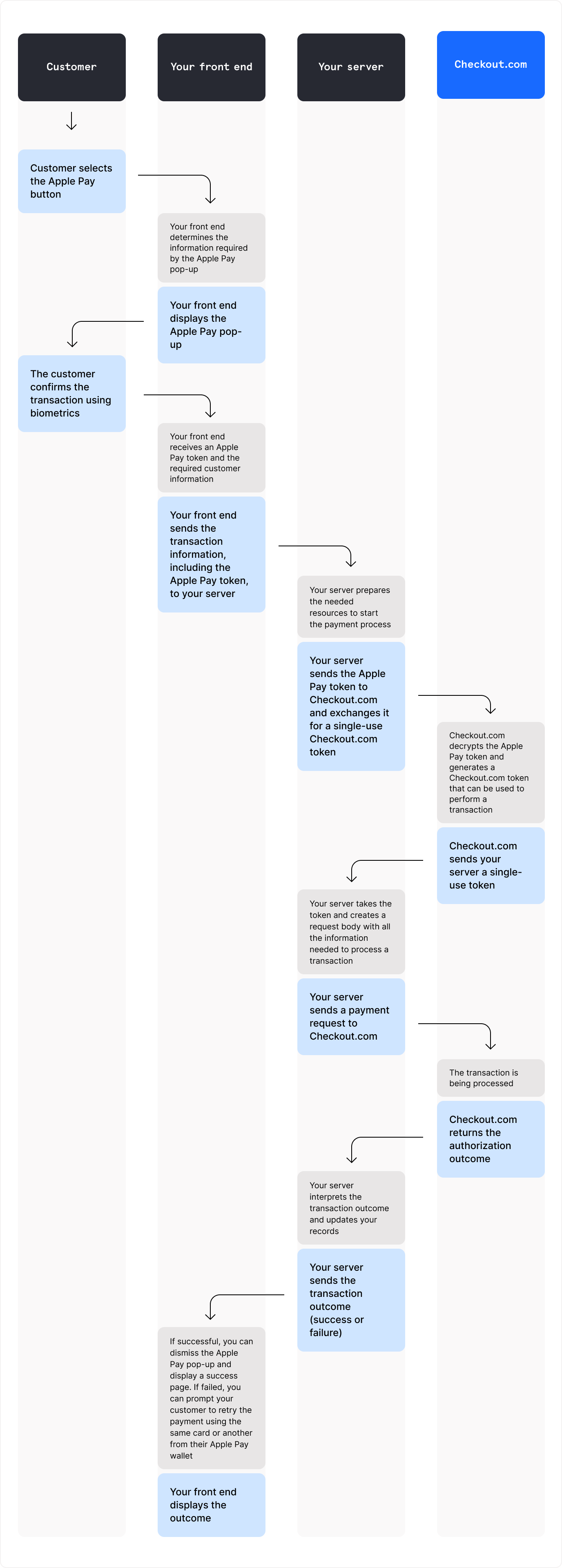
The following diagram shows a successful Apple Pay payment:
---
## Create a payment setup
To accept Apple Pay payments, you must:
1. Create a payment setup.
2. Update the payment setup with the Apple Pay token.
3. Confirm the payment.
Call the [Create a payment setup](https://api-reference.checkout.com/tag/Payment-Setups/#operation/createAPaymentSetup) endpoint.
> **Information**
>
> The Payment Setup API supports [idempotency](https://www.checkout.com/docs/developer-resources/api/idempotency.md). You can safely retry API requests without the risk of duplicate requests.
> **Information**
>
> Your base URL's `{prefix}` value is unique to your account and environment. To learn how to retrieve your base URLs for the sandbox and production environments, see [API endpoints](https://www.checkout.com/docs/developer-resources/api/api-endpoints.md).
**Production**
`POST` `https://{prefix}.api.checkout.com/payments/setups`
**Sandbox**
`POST` `https://{prefix}.api.sandbox.checkout.com/payments/setups`
### Request example
```json
{
"processing_channel_id": "pc_wzjki6hw5puepb5fnvqlizj2e4",
"currency": "GBP",
"amount": 2000,
"reference": "ORDER_01234",
"description": "Apple Pay payment",
"payment_type": "Regular",
"settings": {
"success_url": "https://example.com/payments/success",
"failure_url": "https://example.com/payments/failure"
}
}
```
In the request body, provide the following:
- `processing_channel_id` – The [processing channel's](https://www.checkout.com/docs/business-operations/use-the-dashboard/manage-processing-channels.md) unique identifier
- `amount` – The payment amount
- `currency` – The payment currency
### Response example
```json
{
"id": "set_rcmepwrchqab2wsergcafvijfy",
"processing_channel_id": "pc_wzjki6hw5puepb5fnvqlizj2e4",
"amount": 2000,
"currency": "GBP",
"payment_type": "Regular",
"reference": "ORDER_01234",
"description": "Apple Pay payment",
"payment_methods": {
"applepay": {
"status": "action_required",
"flags": [
"token_or_token_data_required"
]
}
},
"available_payment_methods": [
"applepay"
],
"settings": {
"success_url": "https://example.com/payments/success",
"failure_url": "https://example.com/payments/failure"
}
}
```
The response returns a `payment_methods` object, which contains the payment methods enabled on your account.
For Apple Pay, `payment_methods` contains the following fields:
- `status` – The [status of the payment method](https://www.checkout.com/docs/payments/accept-payments/accept-a-payment-using-the-payment-setup-api#Payment_method_status).
- `flags` – An array of error codes or indicators that highlight missing or invalid information.
---
## Update the payment setup
When the customer selects Apple Pay as the payment method, Apple generates a [payment token](https://developer.apple.com/documentation/applepayontheweb/applepaypaymenttoken). To process a payment using the Apple Pay token, you can:
- Convert it to a Checkout.com card token
- Decrypt it and use the token data
Call the [Update a payment setup](https://api-reference.checkout.com/tag/Payment-Setups/#operation/updateAPaymentSetup) endpoint to submit the token. Provide the following fields, depending on the token you use:
**Checkout.com token**
| Field | Description |
| --- | --- |
| `amount`
`number` | The payment amount, in the [minor currency unit](https://www.checkout.com/docs/payments/accept-payments/format-the-amount-value).
Minimum: 1
**Required** |
| `currency`
`string` | Three-letter ISO 4217 [currency code](https://www.checkout.com/docs/developer-resources/codes/currency-codes.md).
**Required** |
| `processing_channel_id`
`string` | The [processing channel's](https://www.checkout.com/docs/business-operations/use-the-dashboard/manage-processing-channels.md) unique identifier.
Pattern: `^(pc)_(\w{26})$`
**Required** |
| `settings.failure_url`
`string` | The URL to redirect the customer after a failed authorization.
Format: uri
**Required** |
| `settings.success_url`
`string` | The URL to redirect the customer after a successful authorization.
Format: uri
**Required** |
| `payment_methods.applepay.token`
`object` | The Checkout.com Apple Pay token.
**Required** |
| `payment_methods.applepay.token.id`
`string` | The token identifier, prefixed by `tok_`.
Pattern: `^(tok)_(\w{26})$`
**Required** |
| `payment_methods.applepay.token.expires_on`
`string` | The date and time at which the token expires.
Format: date-time |
| `payment_methods.applepay.account_holder`
`object` | The Apple Pay account holder details. |
| `payment_methods.applepay.account_holder.first_name`
`string` | The account holder's first name. |
| `payment_methods.applepay.account_holder.last_name`
`string` | The account holder's last name. |
| `payment_methods.applepay.account_holder.middle_name`
`string` | The account holder's middle name. |
| `payment_methods.applepay.account_holder.type`
`string` | Supported values:
- `individual`
- `corporate`
- `government` |
| `payment_methods.applepay.account_holder.account_name_inquiry`
`boolean` | Indicates whether to perform an account name inquiry with the card scheme (Visa or Mastercard). |
| `payment_methods.applepay.phone`
`object` | The customer's phone number details. |
| `payment_methods.applepay.phone.country_code`
`string` | The international dialing code for the customer's phone number. |
| `payment_methods.applepay.phone.number`
`string` | The customer's phone number. |
| `payment_methods.applepay.store_for_future_use`
`boolean` | Set to `true` if you intend to reuse the payment credentials in subsequent payments. If set to `false`, a payment instrument will not be included in the payment response. |
| `payment_methods.applepay.preferred_scheme`
`string` | The preferred card scheme for co-badged cards.
Supported values:
- `cartes_bancaires`
- `mastercard`
- `visa` |
### Request example
```json
{
"processing_channel_id": "pc_wzjki6hw5puepb5fnvqlizj2e4",
"currency": "GBP",
"amount": 2000,
"reference": "ORDER_01234",
"description": "Apple Pay payment",
"payment_type": "Regular",
"settings": {
"success_url": "https://example.com/payments/success",
"failure_url": "https://example.com/payments/failure"
},
"payment_methods": {
"applepay": {
"token": {
"id": "tok_hilxnnylkxtutoswkxx2425lzi",
"expires_on": "2026-09-15T16:12:05Z"
}
}
}
}
```
### Response example
```json
{
"id": "set_rcmepwrchqab2wsergcafvijfy",
"processing_channel_id": "pc_wzjki6hw5puepb5fnvqlizj2e4",
"amount": 2000,
"currency": "GBP",
"payment_type": "Regular",
"reference": "ORDER_01234",
"description": "Apple Pay payment",
"payment_methods": {
"applepay": {
"status": "ready",
"token": {
"id": "tok_hilxnnylkxtutoswkxx2425lzi",
"expires_on": "2026-09-15T16:12:05Z"
},
"flags": []
}
},
"available_payment_methods": [
"applepay"
],
"settings": {
"success_url": "https://example.com/payments/success",
"failure_url": "https://example.com/payments/failure"
}
}
```
The response returns a `ready` status when the token has been successfully validated. The payment is ready to confirm.
**Apple Pay token data**
| Field | Description |
| --- | --- |
| `amount`
`number` | The payment amount, in the [minor currency unit](https://www.checkout.com/docs/payments/accept-payments/format-the-amount-value).
Minimum: 1
**Required** |
| `currency`
`string` | Three-letter ISO 4217 [currency code](https://www.checkout.com/docs/developer-resources/codes/currency-codes.md).
**Required** |
| `processing_channel_id`
`string` | The [processing channel's](https://www.checkout.com/docs/business-operations/use-the-dashboard/manage-processing-channels.md) unique identifier.
Pattern: `^(pc)_(\w{26})$`
**Required** |
| `settings.failure_url`
`string` | The URL to redirect the customer after a failed authorization.
Format: uri
**Required** |
| `settings.success_url`
`string` | The URL to redirect the customer after a successful authorization.
Format: uri
**Required** |
| `payment_methods.applepay.token_data`
`object` | The Apple Pay payment token data object, returned by the Apple Pay API.
**Required** |
| `payment_methods.applepay.token_data.version`
`string` | The version of the payment token. The token uses `EC_v1` for ECC-encrypted data, and `RSA_v1` for RSA-encrypted data.
**Required** |
| `payment_methods.applepay.token_data.data`
`string` | The encrypted payment data, Base64-encoded.
**Required** |
| `payment_methods.applepay.token_data.signature`
`string` | The signature of the payment and header data. The signature includes the signing certificate, its intermediate CA certificate, and information about the signing algorithm.
**Required** |
| `payment_methods.applepay.token_data.header`
`object` | Additional version-dependent information used to decrypt and verify the payment.
**Required** |
| `payment_methods.applepay.token_data.header.ephemeral_public_key`
`string` | The ephemeral public key. |
| `payment_methods.applepay.token_data.header.public_key_hash`
`string` | The public key hash. |
| `payment_methods.applepay.token_data.header.transaction_id`
`string` | The transaction ID. |
| `payment_methods.applepay.account_holder`
`object` | The Apple Pay account holder details. |
| `payment_methods.applepay.account_holder.first_name`
`string` | The account holder's first name. |
| `payment_methods.applepay.account_holder.last_name`
`string` | The account holder's last name. |
| `payment_methods.applepay.account_holder.middle_name`
`string` | The account holder's middle name. |
| `payment_methods.applepay.account_holder.type`
`string` | Supported values:
- `individual`
- `corporate`
- `government` |
| `payment_methods.applepay.account_holder.account_name_inquiry`
`boolean` | Indicates whether to perform an account name inquiry with the card scheme (Visa or Mastercard). |
| `payment_methods.applepay.phone`
`object` | The customer's phone number details. |
| `payment_methods.applepay.phone.country_code`
`string` | The international dialing code for the customer's phone number. |
| `payment_methods.applepay.phone.number`
`string` | The customer's phone number. |
| `payment_methods.applepay.store_for_future_use`
`boolean` | Set to `true` if you intend to reuse the payment credentials in subsequent payments. If set to `false`, a payment instrument will not be included in the payment response. |
| `payment_methods.applepay.preferred_scheme`
`string` | The preferred card scheme for co-badged cards.
Supported values:
- `cartes_bancaires`
- `mastercard`
- `visa` |
### Request example
```json
{
"processing_channel_id": "pc_wzjki6hw5puepb5fnvqlizj2e4",
"currency": "GBP",
"amount": 2000,
"reference": "ORDER_01234",
"description": "Apple Pay payment",
"payment_type": "Regular",
"settings": {
"success_url": "https://example.com/payments/success",
"failure_url": "https://example.com/payments/failure"
},
"payment_methods": {
"applepay": {
"token_data": {
"version": "EC_v1",
"data": "jMvlopbdmvRYOCSOdzmvvYrBmco8CLAVZHOFgKeVEtFdHHIm...",
"signature": "MIAGCSqGSIb3DQEHAqCAMIACAQExDTALBglghkgBZQMEAgEwgA...",
"header": {
"ephemeral_public_key": "MFkwEwYHKoZIzj0CAQYIKoZIzj0DAQcDQgAEMr6/nWeR6i1m...",
"public_key_hash": "fs98t0RqW8mMsSb7jdz6q7lg+0a1sKvXFTlckNN/DVc=",
"transaction_id": "a86b32a8009c49c4235c6b2beda29c885298588802fa81b83c8764a0d68a9eb9"
}
}
}
}
}
```
### Response example
```json
{
"id": "set_rcmepwrchqab2wsergcafvijfy",
"processing_channel_id": "pc_wzjki6hw5puepb5fnvqlizj2e4",
"amount": 2000,
"currency": "GBP",
"payment_type": "Regular",
"reference": "ORDER_01234",
"description": "Apple Pay payment",
"payment_methods": {
"applepay": {
"status": "ready",
"token": {
"id": "tok_hilxnnylkxtutoswkxx2425lzi",
"expires_on": "2026-09-15T16:12:05Z"
},
"flags": []
}
},
"available_payment_methods": [
"applepay"
],
"settings": {
"success_url": "https://example.com/payments/success",
"failure_url": "https://example.com/payments/failure"
}
}
```
The response returns a `ready` status when the token data is successfully validated and the payment is ready to confirm.
> **Information**
>
> The API returns `payment_methods.applepay.status: unavailable` for all non-validation technical failures occurring during the tokenization process.
### Co-badged cards
The response also includes a `schemes` array listing the card schemes associated with the card.
Some cards are enrolled in more than one card scheme, for example, a card that supports both Visa and Cartes Bancaires. When the customer uses one of these co-badged cards, the `schemes` field in the response lists the available schemes for that card.
To route the payment through a specific card scheme, set `preferred_scheme` when updating the payment setup. Supported `preferred_scheme` values are:
- `cartes_bancaires`
- `mastercard`
- `visa`
> **Information**
>
> If the card is not co-badged, or the requested scheme is not available for the card, Checkout.com ignores the field and processes the payment through the default scheme.
---
## Confirm the payment
When the payment status changes to `ready`, confirm the payment by calling the [Confirm a payment setup](https://api-reference.checkout.com/tag/Payment-Setups/#operation/confirmAPaymentSetup) endpoint and provide:
- The payment setup `id` as the `{id}` path parameter.
- `applepay` as the `{payment_method_name}` path parameter.
**Production**
`POST` `https://{prefix}.api.checkout.com/payments/setups/{id}/confirm/applepay`
**Sandbox**
`POST` `https://{prefix}.api.sandbox.checkout.com/payments/setups/{id}/confirm/applepay`