# Get started with Flow
Set up your client-side and server-side configuration to integrate with Checkout.com's payment gateway and enable payments on your website.
> **Information**
>
> If you only want to accept a specific payment method with Flow, see the [payment method's](https://www.checkout.com/docs/payments/add-payment-methods.md) Flow documentation.
---
## Flow payment process
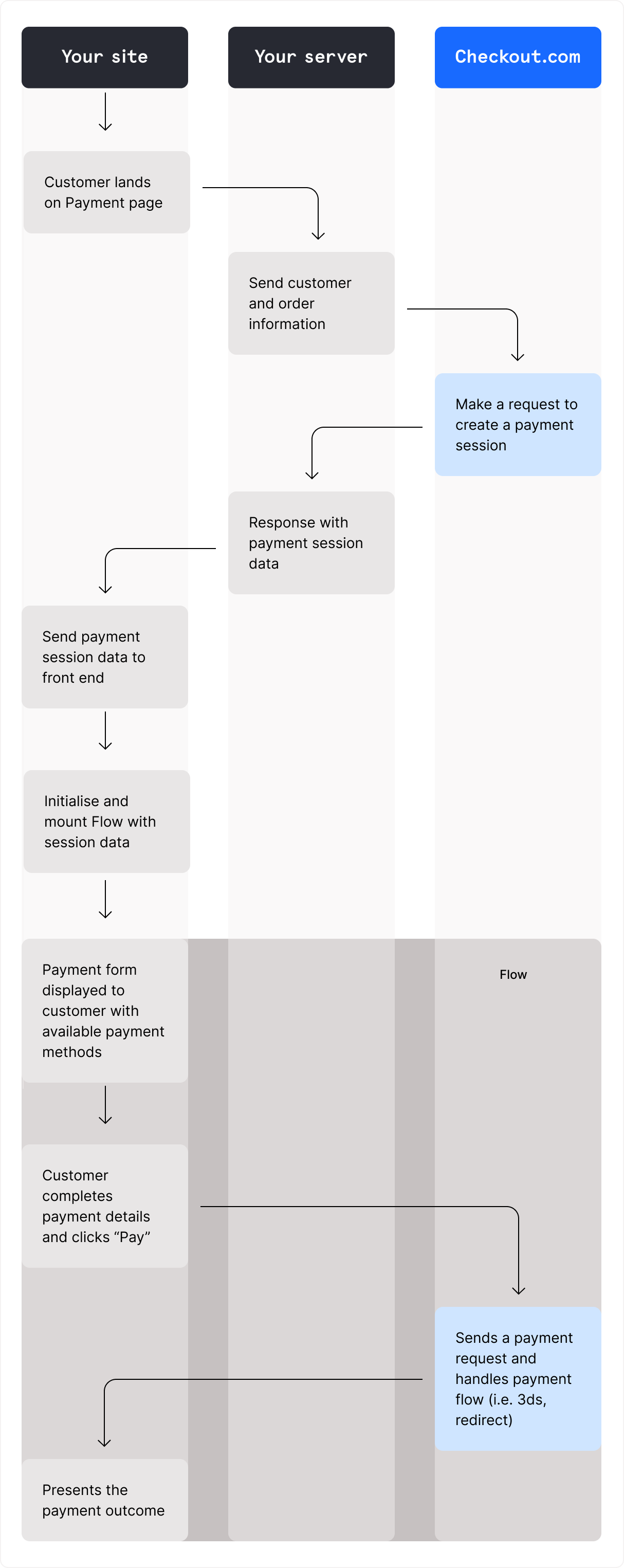
1. The customer lands on your checkout page.
1. You perform a server-side request to create a payment session.
1. You use the payment session data on the client-side to mount Flow.
1. Flow displays the available payment methods to the customer. If the customer's chosen payment method requires additional customer data, Flow captures this from them.
1. When the customer selects _Pay_, Flow performs a payment request and handles any additional actions. For example, additional actions required for [3D Secure (3DS)](https://www.checkout.com/docs/payments/authenticate-payments/3d-secure.md) authentication, or a third-party payment page redirect.
1. If the customer selects the option to save their card for faster checkout, we create a [Remember Me](https://www.checkout.com/docs/payments/accept-payments/accept-a-payment-on-your-website/enable-remember-me.md) profile for them and save their card to it. The customer can reuse their saved cards in future transactions.
1. You receive a webhook notifying you of the payment status.
---
## Before you start
Make sure you have a [test account](https://www.checkout.com/get-test-account) with Checkout.com.
Create a [public key and a secret key](https://www.checkout.com/docs/resources/api-authentication/api-keys.md) in the [Dashboard](https://dashboard.checkout.com), with the following key scopes:
- Public key – `payment-sessions:pay` and `vault-tokenization`
- Secret key – `payment-sessions`
To receive webhooks for the [payment events](https://www.checkout.com/docs/developer-resources/event-notifications/event-types.md#Gateway), [configure your webhook server](https://www.checkout.com/docs/developer-resources/event-notifications/receive-webhooks/configure-your-webhook-server.md).
---
## Create a new Payment Session `Server side`
When the customer is ready to pay, send a server-side request to securely create a `PaymentSession` object. This object contains the information required to handle all steps of the payment flow.
> **Information**
>
> Some payment methods require specific fields. For more information, see each [payment method's](https://www.checkout.com/docs/payments/add-payment-methods.md) Flow documentation.
To create a new `PaymentSession`, call the [Request a Payment Session](https://api-reference.checkout.com/tag/Flow/#operation/CreatePaymentSession) endpoint with your secret key.
> **Information**
>
> You can [enable Remember Me](https://www.checkout.com/docs/payments/accept-payments/accept-a-payment-on-your-website/enable-remember-me.md) to allow customers to save their card details during checkout. The next time the customer shops at any merchant that has Remember Me enabled, we display their saved card details.
> **Information**
>
> Your base URL's `{prefix}` value is unique to your account and environment. To learn how to retrieve your base URLs for the sandbox and production environments, see [API endpoints](https://www.checkout.com/docs/developer-resources/api/api-endpoints.md).
**Production**
`POST` `https://{prefix}.api.checkout.com/payment-sessions`
**Sandbox**
`POST` `https://{prefix}.api.sandbox.checkout.com/payment-sessions`
### Request example
```json
{
"amount": 1000,
"currency": "GBP",
"reference": "ORD-123A",
"display_name": "Online shop",
"billing": {
"address": {
"country": "GB"
}
},
"customer": {
"name": "Jia Tsang",
"email": "jia.tsang@example.com"
},
"success_url": "https://example.com/payments/success",
"failure_url": "https://example.com/payments/failure"
}
```
### Response example
```json
{
"id": "ps_2Un6I6lRpIAiIEwQIyxWVnV9CqQ",
"payment_session_secret": "pss_9823241e-2cec-4c98-b23d-7b29ow4e2e34",
"payment_session_token": "YmFzZTY0:eyJpZCI6InBzXzJVbjZJNmxScElBaUlFd1FJeXhXVm5WOUNxUSIsImFtb3VudCI6MTAwMCwibG9jYWxlIjoiZW4tR0IiLCJjdXJyZW5jeSI6IkdCUCIsInBheW1lbnRfbWV0aG9kcyI6W3sidHlwZSI6ImNhcmQiLCJjYXJkX3NjaGVtZXMiOlsiVmlzYSIsIk1hc3RlcmNhcmQiLCJBbWV4Il19XSwicmlzayI6eyJlbmFibGVkIjp0cnVlfSwiX2xpbmtzIjp7InNlbGYiOnsiaHJlZiI6Imh0dHBzOi8vYXBpLnNhbmRib3guY2hlY2tvdXQuY29tL3BheW1lbnQtc2Vzc2lvbnMvcHNfMlVuNkk2bFJwSUFpSUV3UUl5eFdWblY5Q3FRIn19fQ==",
"_links": {
"self": {
"href": "https://{prefix}.api.sandbox.checkout.com/payment-sessions/ps_2Un6I6lRpIAiIEwQIyxWVnV9CqQ"
}
}
}
```
The payment session response determines which payment methods can be displayed to the customer, depending on the following:
- The customer's device
- The customer's region
- The payment methods activated for your account
To request to activate additional payment methods, contact your account manager or [request support](https://dashboard.checkout.com/support/new?topic=case_account_management_and_access&issue=issue_account_changes).
---
## Initialize and mount Flow `Client side`
You can install the `@checkout.com/checkout-web-components` package via npm:
```bash
npm install @checkout.com/checkout-web-components --save
```
Alternatively, you can load the package directly via a script:
```html
```
> **Note**
>
> To remain PCI compliant, only ever load the script directly from `https://checkout-web-components.checkout.com`. Do not download or host the script yourself, or include it in a bundle.
### Download project template (optional)
[Download sample files (.zip)](https://www.checkout.com/docs/assets/downloads/flow-template.zip)
If you use the template, you must set up your own server.
**index.html**
```html
Checkout Web Components: Flow Component
The payment was successful
The payment failed, try again
```
**style.css**
```css
/* Normalize */
button,hr,input{overflow:visible}progress,sub,sup{vertical-align:baseline}[type=checkbox],[type=radio],legend{box-sizing:border-box;padding:0}html{line-height:1.15;-webkit-text-size-adjust:100%}body{margin:0}details,main{display:block}h1{font-size:2em;margin:.67em 0}hr{box-sizing:content-box;height:0}code,kbd,pre,samp{font-family:monospace,monospace;font-size:1em}a{background-color:transparent}abbr[title]{border-bottom:none;text-decoration:underline;text-decoration:underline dotted}b,strong{font-weight:bolder}small{font-size:80%}sub,sup{font-size:75%;line-height:0;position:relative}sub{bottom:-.25em}sup{top:-.5em}img{border-style:none}button,input,optgroup,select,textarea{font-family:inherit;font-size:100%;line-height:1.15;margin:0}button,select{text-transform:none}[type=button],[type=reset],[type=submit],button{-webkit-appearance:button}[type=button]::-moz-focus-inner,[type=reset]::-moz-focus-inner,[type=submit]::-moz-focus-inner,button::-moz-focus-inner{border-style:none;padding:0}[type=button]:-moz-focusring,[type=reset]:-moz-focusring,[type=submit]:-moz-focusring,button:-moz-focusring{outline:ButtonText dotted 1px}fieldset{padding:.35em .75em .625em}legend{color:inherit;display:table;max-width:100%;white-space:normal}textarea{overflow:auto}[type=number]::-webkit-inner-spin-button,[type=number]::-webkit-outer-spin-button{height:auto}[type=search]{-webkit-appearance:textfield;outline-offset:-2px}[type=search]::-webkit-search-decoration{-webkit-appearance:none}::-webkit-file-upload-button{-webkit-appearance:button;font:inherit}summary{display:list-item}[hidden],template{display:none}
/* Styling */
*,
*::before,
*::after {
box-sizing: border-box;
}
html {
padding: 1rem;
background-color: #fff;
font-family: -apple-system, BlinkMacSystemFont, "Segoe UI", Roboto, Oxygen,
Ubuntu, Cantarell, "Open Sans", "Helvetica Neue", sans-serif;
}
form {
max-width: 31.5rem;
margin: 0 auto;
}
.toast {
visibility: hidden;
min-width: 250px;
margin-left: -125px;
color: #fff;
text-align: center;
border-radius: 2px;
padding: 16px;
position: fixed;
z-index: 1;
left: 50%;
bottom: 0;
font-family: monospace;
display: inline-flex;
line-height: 12px;
opacity: 0;
}
.toast.success {
background-color: mediumseagreen;
}
.toast.failed {
background-color: indianred;
}
.toast span {
margin-left: 12px;
margin-top: 2px;
}
.toast.show {
visibility: visible;
-webkit-animation: fadein 5s;
animation: fadein 5s;
}
@keyframes fadein {
0% {
bottom: 0;
opacity: 0;
}
16.667% {
bottom: 30px;
opacity: 1;
}
83.333% {
bottom: 30px;
opacity: 1;
}
100% {
bottom: 0;
opacity: 0;
}
}
```
**app.js**
```javascript
/* global CheckoutWebComponents */
(async () => {
// Insert your public key here
const PUBLIC_KEY = "{your_public_key}";
const response = await fetch("/create-payment-sessions", { method: "POST" }); // Order
const paymentSession = await response.json();
if (!response.ok) {
console.error("Error creating payment session", paymentSession);
return;
}
const checkout = await CheckoutWebComponents({
publicKey: PUBLIC_KEY,
environment: "sandbox",
locale: "en-GB",
paymentSession,
onReady: () => {
console.log("onReady");
},
onPaymentCompleted: (_component, paymentResponse) => {
console.log("Create Payment with PaymentId: ", paymentResponse.id);
},
onChange: (component) => {
console.log(
`onChange() -> isValid: "${component.isValid()}" for "${
component.type
}"`,
);
},
onError: (component, error) => {
console.log("onError", error, "Component", component.type);
},
});
const flowComponent = checkout.create("flow");
flowComponent.mount(document.getElementById("flow-container"));
})();
function triggerToast(id) {
var element = document.getElementById(id);
element.classList.add("show");
setTimeout(function () {
element.classList.remove("show");
}, 5000);
}
const urlParams = new URLSearchParams(window.location.search);
const paymentStatus = urlParams.get("status");
const paymentId = urlParams.get("cko-payment-id");
if (paymentStatus === "succeeded") {
triggerToast("successToast");
}
if (paymentStatus === "failed") {
triggerToast("failedToast");
}
if (paymentId) {
console.log("Create Payment with PaymentId: ", paymentId);
}
```
The client side initializes an instance of `CheckoutWebComponents` with configuration information and the payment session data retrieved earlier.
```javascript
// Insert your public key here
const publicKey = '{YOUR_PUBLIC_KEY}';
const checkout = await CheckoutWebComponents({
paymentSession,
publicKey,
environment: 'sandbox',
});
```
### Configuration options
You can use the following configuration options to instantiate an instance of `CheckoutWebComponents`:
| JavaScript key | Description |
| --- | --- |
| `appearance` | Enables you to customize the visual appearance of the `CheckoutWebComponents` elements. For customization options, see [Appearance options](https://www.checkout.com/docs/payments/accept-payments/accept-a-payment-on-your-website/customize-your-flow-integration.md#Appearance_options). |
| `componentOptions` | Enables you to customize the options for the individual Flow components. For example, you can change the position of the cardholder field in the `card` component. For customization options, see [Component options](https://www.checkout.com/docs/payments/accept-payments/accept-a-payment-on-your-website/flow-library-reference/checkoutwebcomponents.md#Initialization). |
| `environment` | Sets the environment that the library should point to and send requests to. This can be one of:
- `production` - `sandbox` |
| `locale` | Sets the customer's locale. Explicitly setting this value overrides the `locale` returned by the `PaymentSession`. For supported languages, see [Add localization to your Flow integration](https://www.checkout.com/docs/payments/accept-payments/accept-a-payment-on-your-website/add-localization-to-your-flow-integration.md). |
| `paymentSession`
`required` | The response from the `PaymentSession`. |
| `publicKey`
`required` | Your public API key, prefixed with `pk_`. |
| `translations` | Enables you to provide custom text translations for natively supported languages, or add custom text for locales and languages not natively supported by Flow. To learn how to add translations, see [Add localization to your Flow integration](https://www.checkout.com/docs/payments/accept-payments/accept-a-payment-on-your-website/add-localization-to-your-flow-integration.md). |
You can use `CheckoutWebComponents` to create a `flow` object. `flow` contains a dynamic list of all payment methods available for the payment session you passed into `CheckoutWebComponents`.
```javascript
const flowComponent = checkout.create('flow');
```
Mount Flow to your website using the `flow.mount()` method. The method takes an [Element selector](https://developer.mozilla.org/en-US/docs/Web/API/Element) or an [Element](https://developer.mozilla.org/en-US/docs/Web/API/Document_object_model/Locating_DOM_elements_using_selectors) as an argument. For example, `#flow-container` or `document.getElementById(#flow-container)`, respectively.
**Mount Flow to a Selector**
```javascript
flowComponent.mount('#flow-container');
```
**Mount Flow to an Element**
```javascript
const flowElement = document.getElementById('flow-container');
flowComponent.mount(flowElement);
```
> **Note**
>
> You cannot embed Flow within an iframe or onto a Shadow DOM.
---
## Handle the payment response `Client side`
You can use Flow to handle payment methods that require a redirect (asynchronous payments) and those that do not (synchronous payments).
### Asynchronous payments
Depending on the payment outcome, some payment methods and 3D Secure authentication flows redirect the customer to a success or failure URL on your website.
Checkout.com sends a webhook to your server notifying you of changes to the payment's status. Wait for the webhook callback before you start your order fulfillment process.
For payments submitted with Flow, the `PaymentSession` ID is returned in the webhook payload's `data.metadata.cko_payment_session_id` field.
Optionally, you can retrieve the payment result from your server. Call the [Get payment details](https://api-reference.checkout.com/tag/Payments/#operation/getPaymentDetails) endpoint and provide the `cko-payment-id` from the URL as the `{id}` path parameter. For example:
```
https://example.com/success?cko-payment-id=pay_mbabizu24mvu3mela5njyhpasd
```
### Synchronous payments
Payment methods that do not require a redirect raise an `onPaymentCompleted` event when the payment is successfully completed. You can use this to notify the customer of the payment status.
```javascript
const checkout = await CheckoutWebComponents({
paymentSession,
publicKey,
onPaymentCompleted: async (_self, paymentResponse) => {
// Handle synchronous payments
await handlePayment(paymentResponse.id);
},
});
```
The event returns the payment ID in the `paymentResponse.id` field. To retrieve the payment result from your server, call the [Get payment details](https://api-reference.checkout.com/tag/Payments/#operation/getPaymentDetails) endpoint and provide the payment ID as the `{id}` path parameter.
---
## Test the integration
Use [test cards](https://www.checkout.com/docs/developer-resources/testing/test-cards.md) to simulate different payment flows and ensure your integration is set up correctly and behaving as expected.
> **Information**
>
> Ensure that you test each payment method that you want to offer to your customers.
You can check the status of a payment from the _Payments_ > _Processing_ > _All payments_ page in the [Dashboard](https://dashboard.checkout.com).
---
## Content Security Policy
If you have a Content Security Policy (CSP) on your website, Checkout.com requires the following directives:
```
connect-src, https://*.checkout.com
frame-src, https://*.checkout.com
script-src, https://*.checkout.com
img-src, https://*.checkout.com
```
---
## Next steps
**[Customize your Flow integration](https://www.checkout.com/docs/payments/accept-payments/accept-a-payment-on-your-website/customize-your-flow-integration.md)**
Learn how to customize your Flow integration.
**[Flow library reference](https://www.checkout.com/docs/payments/accept-payments/accept-a-payment-on-your-website/flow-library-reference.md)**
See the configuration options and error handling steps for Flow.
**[Configure your webhook server](https://www.checkout.com/docs/developer-resources/event-notifications/receive-webhooks/configure-your-webhook-server.md)**
Configure a webhooks workflow to choose which events to subscribe to, and when you want them to occur.